Home
PowerForce™
Configuration of Child Services Worker (CSW) Award
|
|
Introduction
In the EDMEN version of Powerforce, a special configuration window "Client Role Payrate Override" exists to link / enforce a classification (pay class) link when employees work at specific sites. This enables the setting of pay rates for anyone that works as specific locations. You of course have to configure each site as a result.
Client / Role rate mapping
- Select the client-id via the dropdown
- Set role type to "ALL" (leave it at default)
- Leave employment type at ALL, unless you're defining based upon employment type
- Within the grid, set the effective date
- Under the "Pay Class' column, double-click to select the pay class that you wish all employees to be paid
- Press "Save" to store your configuration.

- Follow the same steps as above for the client id
- Using the dropdown for role type, select "SLEEPOVER"
- Under Pay Class, again using the dropdown, select the correct sleepover pay class
- Press "Save" to store your configuration

These two steps are all that is required to configure the requirement of escalating pay classes based on the work location.
Top of Page
Double-checking the configuration
Open your scheduling to the site configured
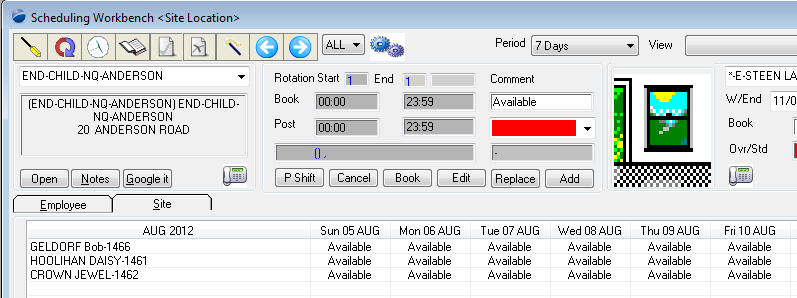
The display (in this case) has a list of preferred employees set, otherwise use the adhoc wizard to create a blank shift.
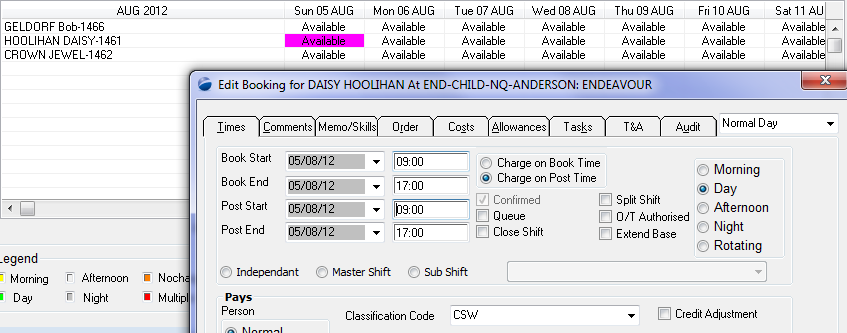
Select any available shift, and click the "Book" button. This has the effect of pre-selecting the employee.
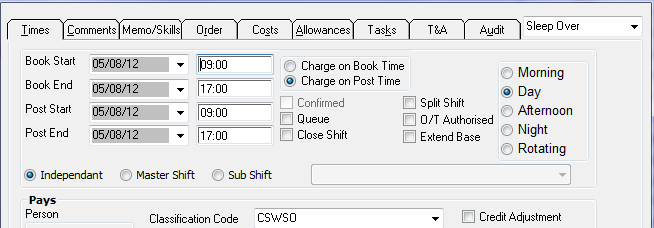
Enter a Book Start & Book End time, and as to move off the Book End time, you will notice that the Classification Code is set to "CSW", which is the required effect in this case.
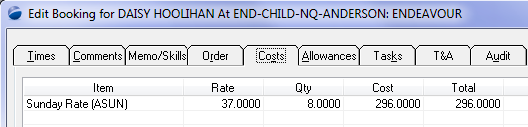
To verify the costs details, click on the Costs tab. At this stage, do not Save the shift as you are only checking the award and how it's working.
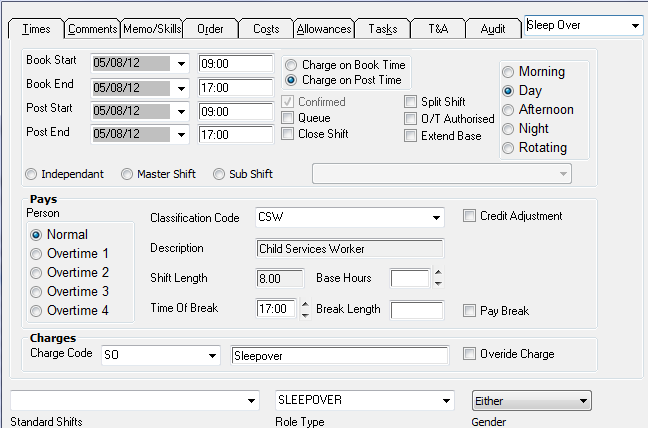
Again, without saving any data, return to the Times tab
This time, change the shift type to "Sleep Over" to see if the system will pick up & pay the correct rate.
As you select Sleep Over, notice that the Role Type changes to Sleepover - which also changes the Charge Code automatically.
What you will also notice is that the Classification Code, appears not to have changed.
However, click the Costs tab, and you will see that the classification has actually changed.

If you were to then Save the record, and re-open it, the classification code will show correctly to reflect the SleepOver.
Top of Page
Summary
Top of Page
See Also
 PowerForce Controls PowerForce Controls
|