Home
Mitchell Corp
Top of Page
AWARD INTERPRETER
AI has been developed with the sole purpose of capturing and reporting time sheets for employees. It is designed to reduce the requirement on individuals to have an in-depth knowledge of the various awards within the organisation and the allowances and entitlements employees have based on the rules of the award.
These rules are predefined and are not able to be changed. Even if they were to be changed, it is the Payroll System which determines the monitory value of the payment.
In a nutshell, AI tells the Payroll System what the award isand How Many hours the employee worked, the Payroll system determines HOW MUCH to pay per hour.
Where does the information come from?
When a new employee or a new pay class is created in meridian an IMPORT of the data has to be done in to AI. This brings the new information across and enters it in to the AI system.
When it is time for the employees to be paid, we do an EXPORT from meridian with all the employee’s details, such as hours worked against what contract they were working for.
:
 Press the "Edit Job" button. This will place the cursor at the Job No field. Press the "Edit Job" button. This will place the cursor at the Job No field.
Enter an existing job number. The details of the job will be displayed.
Make your changes. Press the "Save" button to save the modified details away. Press the "Exit" button if you have not made any changes.
This will then take you to the AI log on screen. Your Username is GERO. Leave the Password blank and press ok.
This opens up the main page for AI.
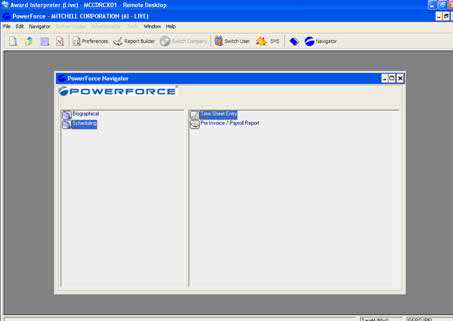
Figure 1.2
Double click Scheduling, then on the right hand side, double click Time Sheet Entry.
This opens up the time sheet entry screen.
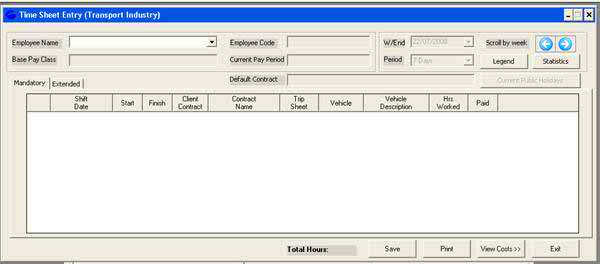
Figure 1.3
Step 1 – Select an employee.
There are 2 ways you can do this
- click on the down arrow, this opens a drop down box with a list of all the employees
- Type in a dollar sign and the first 3 letters of the employees last name – eg $NEL. This will open a box with all the employees who’s last name begins with those three letter. Or, if they are the only employee with those letters, it will automatically select that person.
Once the employees name has been entered in to AI
Step 2 – Entering a trip.
There are two different ways you can enter a trip sheet, you can use either the Mandatory screenor the Extended screen.
Most of the information that you need you will find on the trip sheet that you receive from the drivers. Please see figure 1.6.
Mandatory Time Sheet Entry
The Mandatory fieldis used when the employee works for the same contract every day.
The fields that you would fill in are:
Shift Date, Start and Finish Time, Client contact (default), vehicle number.Double check the total hours match the total hours on the trip sheet.
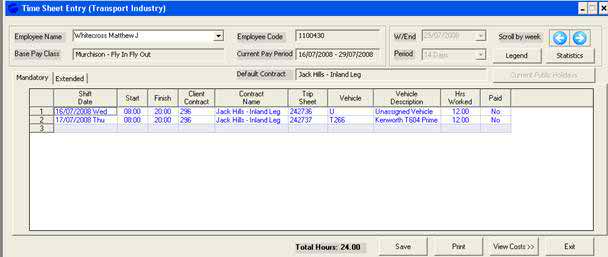
Figure 1.4
Extended Time Sheet Entry
The Extended Screen is used when an employee works for different contracts on a day to day basis, or if they are performing duties other than driving, eg Sick leave or Training. The fields that you would fill in are:
Shift Date, Start and Finish Time, Client contact (default), Day Type, Trip sheet number, vehicle and pay class.Double check the total hours worked.
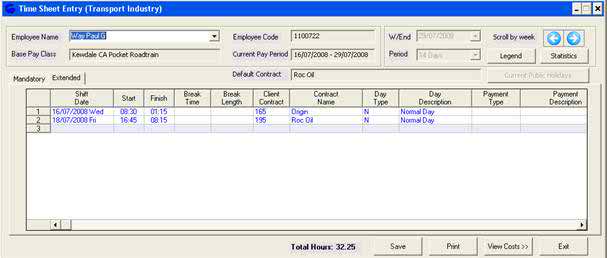
Figure 1.5
Example Time Sheet
�
�
�
�
� 
Figure 1.6
Shift Date - Date the shift was started on.
Start & Finish Time - Start and Finish times of shift
Break Time* - If a the employee had a break that should not be paid for,
this is where you would enter the time the break occurred.
Break Length* - Duration of Break
Client Contract - What cost code the employee is working for eg 295
Contract Name - This will automatically generate once the client contract
number is entered. Eg Jack Hills – Port Leg
Day Type* - This is to classify what type of work the employee did on that
day. A drop down box appears when you click in this field and you select the type from a list.
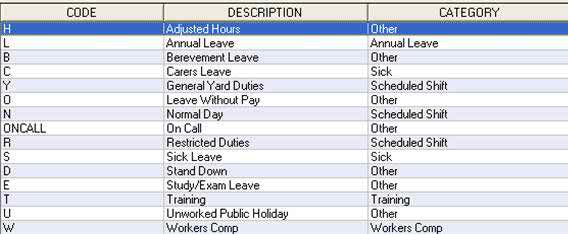
Figure 1.7
Day Description* - This will automatically generate once day type is selected.
Payment Type * - This field is left blank.
Payment Description* - This field is left blank.
Trip Sheet - This is the Trip Sheet number on the driver’s trip sheet.
See figure 1.4.
Vehicle - The vehicle the employee was driving. See Figure 1.4
Vehicle Description - This will automatically generate once the vehicle number is
entered.
Pay Class* - This is what AWA/EBA/UCA etc the employee is working for.
A drop down box appears when you click in this field and you select a pay class from a list.

Figure 1.8
Class Description* - This is automatically generated once the play class is
entered.
Hours Worked - Total hours worked that shift.
Paid - Shows if the employee has been paid.
(* Apply to the Mandatory Field)
Each Pay run you will be asked to run a report in AI to double check the hours and then signoff/ok them. At the top of the screen there is a button called Report Builder.

Figure 2.0
When you click on the button, the following screen will appear.
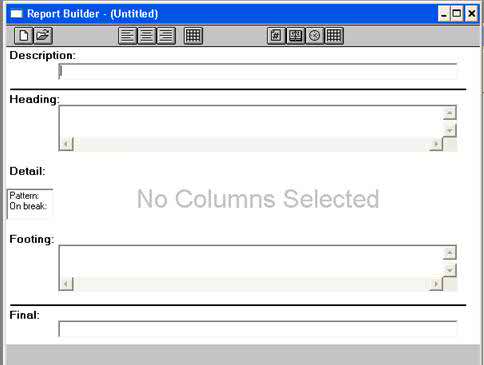
Figure 2.1
Click on the open folder icon to show you the reports that are available to you.
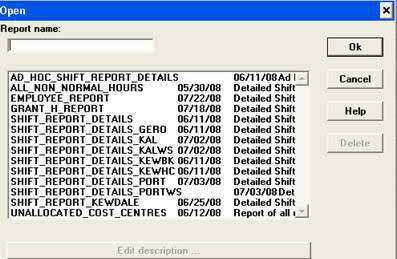
Figure 2.2
The report that has been prepared for Geraldton is called SHIFT_REPORT_DETAILS_GERO. Click on the name of the report to highlight it, the click OK. This will bring up the details of the report in the Report Builder box.
To Preview the report click on the 
To Print the report click on the 

Figure 2.3
The report should look like this:

Figure 2.4
The report shows the following details:
Employee Number
Employee Name
Date of shift
Start and Finish times
Code
Quantity
Hours
Day Type
Trip Sheet number
Contact
Cost Code
To log off AI click the Black X at the top right hand side of the screen.
DO NOT click the Red X as this will not log you off from the server and if you try and log back in later that day, you will be unable to.
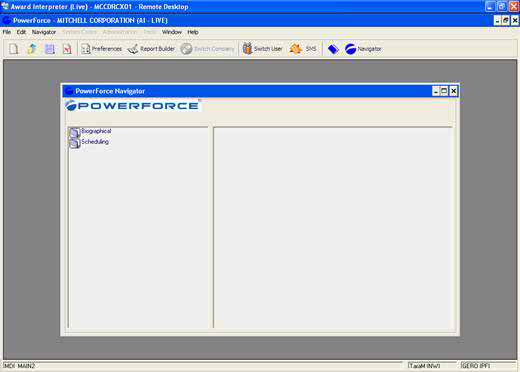
Figure 3.0
- Problem 1 -
A new employee has started, but I don’t have them in my list
Reason
Because the data from AI is imported across from Meridian, when a new employee is entered into the system, they then need to be imported into AI.
Once the import is completed, the Employee needs to be allocated to a Depot and to a cost centre, however these are only done a couple of times a week.

- Problem 2:
I have entered a time sheet in to AI, but when I went back in, all the entries disappeared.
Reason
THE INFORMATION IS NOT LOST! DO NOT RE ENTER THE TIMESHEET.
Each depot has their own profile. If the employee is entered against a cost code that isn’t allocated to your profile, you will be able to enter the information, but you won’t be able to view it.

Solution
Email your problem along with the employee’s name and employee number to Tara McNeill in the IT department.
Top of Page
See Also
. PowerForce Controls
Top of Page
|