Home
Employee data Sync
Overview
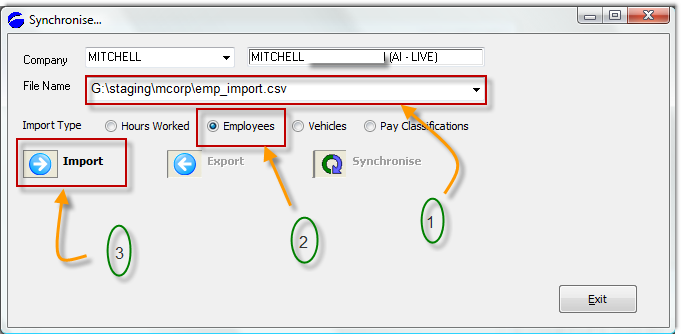
- Point the "File Name" to where you have exported the Meridian employee data. Please ensure that the export format corresponds to the standard format.
- Select the correct data upload (Employee in this case).
- Press the Import button
Top of Page
Import the employee list file
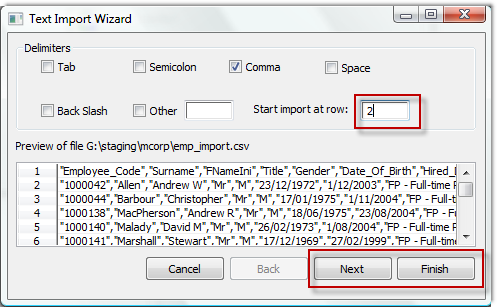
The first entry in your export file is likely to be a header created by your export program. Therefore, change the "Start import at row" to 2, other wise you will get an unnecessary error message pointing to your header line.
Top of Page
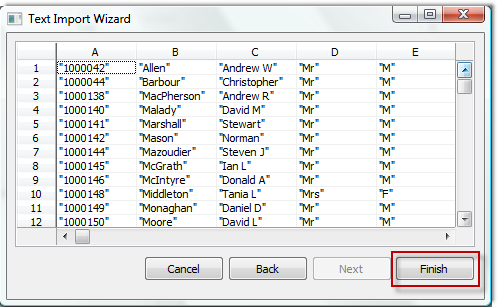
Verify your column data
Top of Page
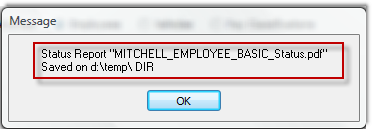
Review the resulting report
The synch process will create a .pdf file with details of what succeeded and what did not, as well as details of what errors (if any) were found in the sync.
Top of Page
Verifying that the data came through
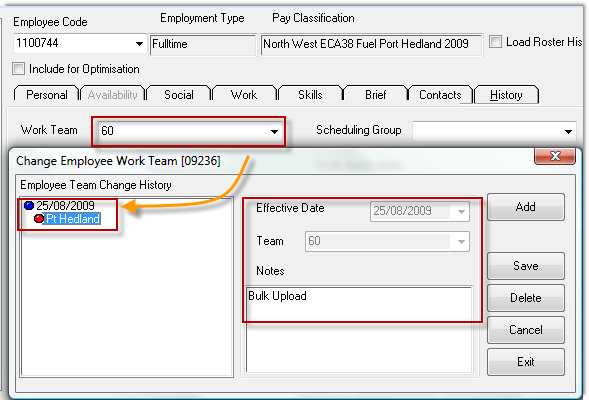
One of the more recent updates to the sync process is the loading of employee work teams - using the Employee Specification screen, quickly check that data has come through.
Top of Page
Format of input data
The following represents the format of the input file that this sync process expects for input.

The following represents the format of the input file that this sync process expects for input.

See Also
 PowerForce Controls PowerForce Controls
|