Home > Tutorials

Generating a Standard Schedule
Top of Page
Introduction
The generation of standard schedules prepares PowerForce with pre-defined rosters. You have the ability to auto generate the rosters for multiple weeks at a time, as well as to re-generate the roster if you make changes to the standard schedules.
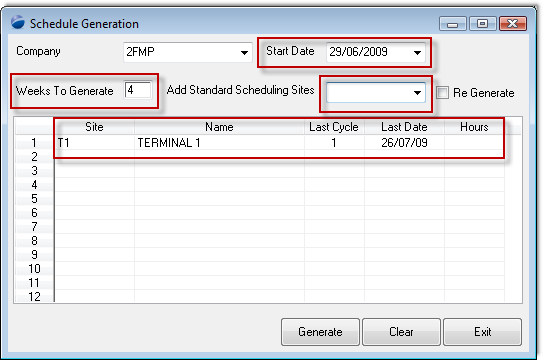
| Company |
Select the company that owns this client rostering location |
| Start Date |
This defines the Monday of the week for which you are generating rosters. In this instance I entered 1/7/09 as the start date, which is a Wednesday - the system automatically wound the date back to the Monday, and as you will see it will only generate rosters from 1/7/09 - as this is the date of the commencement of the contract. |
| Weeks to Generate |
You may choose from 1 to 'n' weeks. The choice is really driven by the amount of maintenance you will need to undertake if we schedule too far in advance and you have substantial staff movement. |
| Add Stadard Rostering Sites |
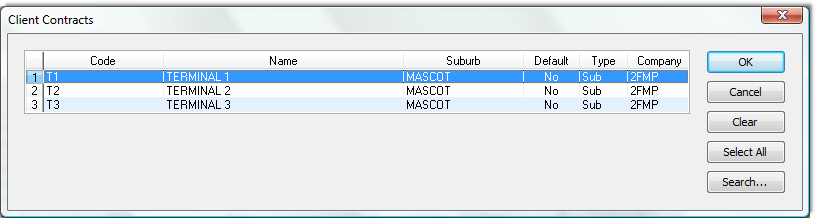
You will be presented with the rostering sites for which a standard schedule has been defined. Having just the client work schedules is not enough.
When you make your selection the selected sites will appear in the lower half of the screen (as above).
|
| Re Generate |
You would tick this check box if you're re-generating a set of schedules for a period that you have already previously generated for. |
| |
|
Top of Page
If you've generated this schedule before
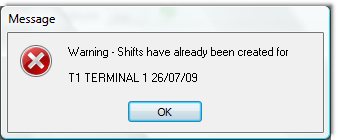 This is purely a warning - if you want to cancel then press the exit button on the main screen. This is purely a warning - if you want to cancel then press the exit button on the main screen.
Top of Page
Selecting a site to generate for
Top of Page
Completed generated schedule

As is the case for creating the work and standard schedules, you must generate the schedules for each sites.
Top of Page
See Also
 PowerForce Controls PowerForce Controls
SACL Client Work Schedules
SACL Client Standard Schedules
Top of Page
|