Home > Helpdesk

Tutorial
Site specific pay classifications are not working.
When employees work at a specific site, they are meant to be paid at a rate different to their own generic pay class. |
|
Introduction
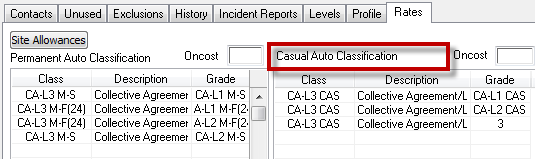
The configuration of site specific pay class is defined via the Client Operations screen - on the Rates tab, as below:
Reading the configuration:
On the left hand side (LHS), are the rate changes for Permanent employment type classification, and Casual on right (RHS) as indicated above.
Reading the RHS Casual definition:
- Employees whose classification is of a "Grade" CA-L1 CAS, CA-L2 CAS or 3, are to be changed to be paid at "CA-L3 CAS".
Checking the raw data
The recommended way to debug problems is to review a shift which the client has indicated is not calculating out correctly. In that way, when a correction is made, we can re-calculate the shift in error and verify whether it is now correct. The shift in error is shown below, and re-viewing the detail above - this shift should have changed to CA-L3 CAS.
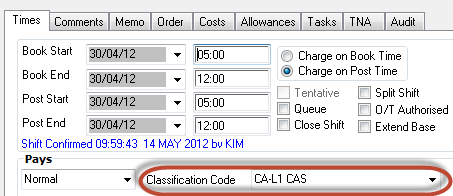
The next thing is to verify that the employee on this site is of a classification which has the grades shown above in the 1st image.
Checking employee details confirms that this is indeed the case, and that the employee has an employment type of "CASUAL".
The details for the classification confirm that the Grade is one of the required types as detailed above:
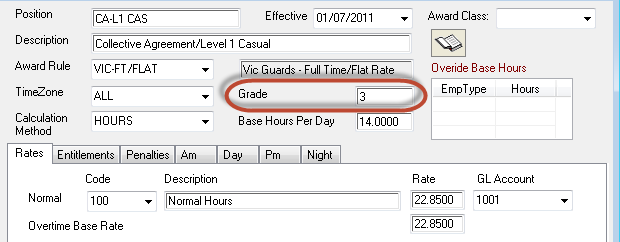
The classification is ok, so we'll now confirm the details of the employee's employment type (CASUAL):
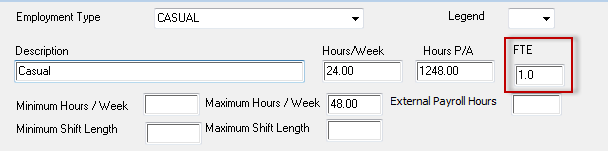
Here is the error, a casual employee has to be less than 1.0 (generally 0.5), and hence the employee was not being see as a CASUAL on the Client Operations screen. And if you review the initial image, you will see that '3' is not a grade showing on the permanent employee (LHS) of the configuration.
Apply the correction
The employment type for Casual has to change it's FTE value to less than 1.0, and we recommend 0.5.

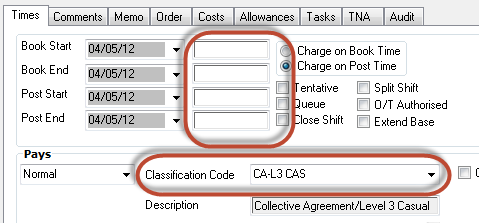
Now, return to the scheduling workbench, find a blank entry against the same employee with the original error, click Book to create a new shift for that employee, "Pressing Book" yields:
- A blank shift as you can see below, with no times entered.
- However, the system has already switched the classification to CA-L3 CAS (because you have booked the shift against the same employee that is a grade 3).
Summary
With the employment type corrected, the system is able to perform as expected.
Top of Page
See Also
 PowerForce Controls PowerForce Controls
|