Home > Tutorials

TimeSheet Entry - PowerForce ™
Introduction
The Time Sheet Entry (NVT_004) screen has been modified to accept the extended time sheet format as represented by the Georgiou "Daily Workplace Report" & "Plant Department Daily Time Sheets".
Top of Page
Time Sheet Entry - Employees
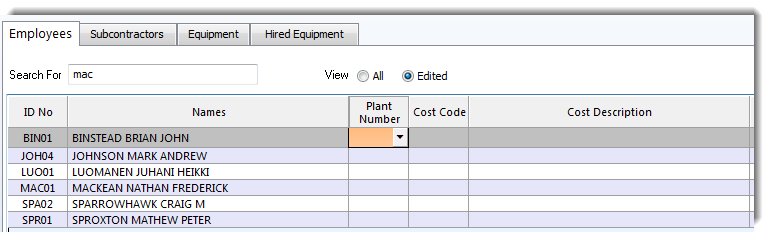
Each element of data capture will be presented to the user (site supervisor) as a dropdown. This will act as a speed-up of processing as well as immediate data validation. The use may also type the data in free-hand. This is the new format of the time sheet entry screen, where you have the ability to enter Plant / Equipment id that the employee worked on during the day.

| Column Id |
Type |
Description & Use |
| Job Code |
Drop down (fixed) |
Select the job code that you're entering data for |
| Job Name |
Display only |
Displays the description of the job code |
| Date |
Drop down |
Enter the date for which you are entering this time sheet |
| Plant Number |
Drop down |
(If required), enter the plant / equipment that the employee worked on during the day |
| Cost Code |
Drop down |
Enter the cost code associated with the employee's hours |
| Cost Description |
Display only |
Displays the description of the cost code |
| Start |
Drop down / data entry |
Enter the shift start time (preferrably in 24 hour format) |
| Finish |
Drop down / data entry |
Enter the shift start time (has to be in 24 hour format) |
| Meal Break |
Data entry |
Enter the lenght of the meal break in minutes (30 for 1/2 hour) |
| Pay Code |
Drop down |
Select the pay code for the shift (if required) |
| Pay Code Description |
Display only |
Displays the description of the pay code |
| Total hours |
Display only |
The lenght of the shift, taking into consideration the meal break |
To start data entry, begin by select a Job Code for which you wish to enter time sheet data. You will be presented with the available job codes as a mechanism which controls that you do not enter invalid data.
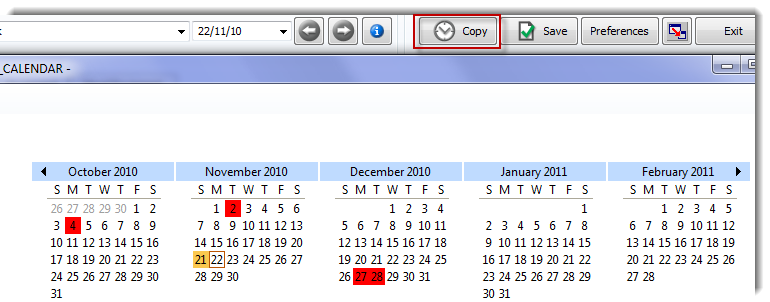
Enter the date for which you're entering the data. If you wish to copy a time sheet from a previous day, select the copy button to select the day from which you wish to copy the data.
Then select the employee for whom you are entering data on the left, and complete the line as appropriate, entering only the data relevant to that shift.
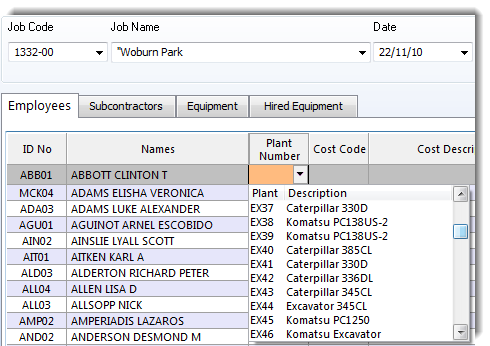
When entering the cost code, you may use the drop down provided, or type the data in free hand. Tab off the field or hit Return to move to the next input field.
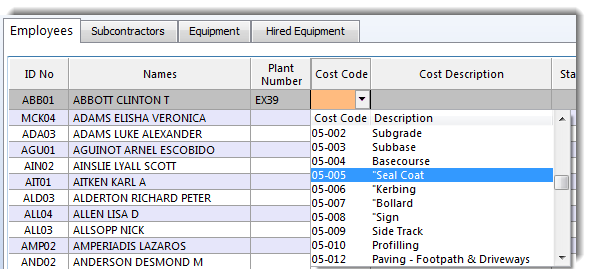
To complete the time sheet for the employee, enter the start and finish time of the shift (in 24 hour format). Then enter the length of the meal break in minutes. The system will calculate the shift lenght based on this data.

When you press the Save button, the data in all of the tabs will be saved to the database. You may then continue to add more data, or make changes to the data you've entered, and then press Save to re-save the new data.

Top of Page
Subcontractors Tab
The most significant change is that between the Georgiou employee and its sub-contractors. This will provide for clear data entry, and help focus the user on correct data entry. The subcontractors will be presented on a tab of their own, as with Georgiou and Hired equipment.
On the subcontrators tab, you have the ability to enter number of staff, rather than entering individual employee details.
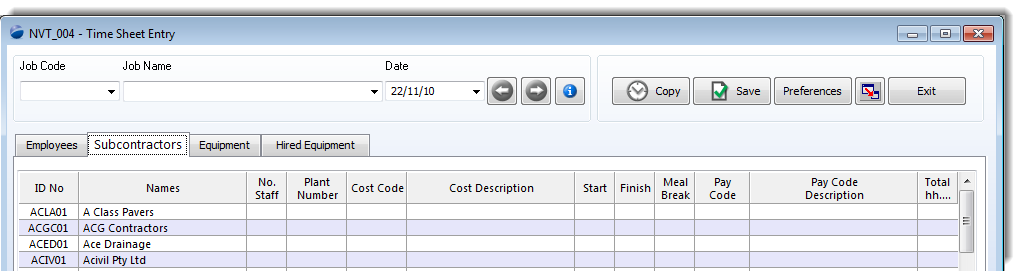
Worked example of entering a number of staff.

Top of Page
Equipment Tab
The equipment tab shows the Georgiou plant. The equipment tab will immediately show the actual equipment that is on this site.
This serves as a control on data entry and presents a clear image of what actually is being used on the job.
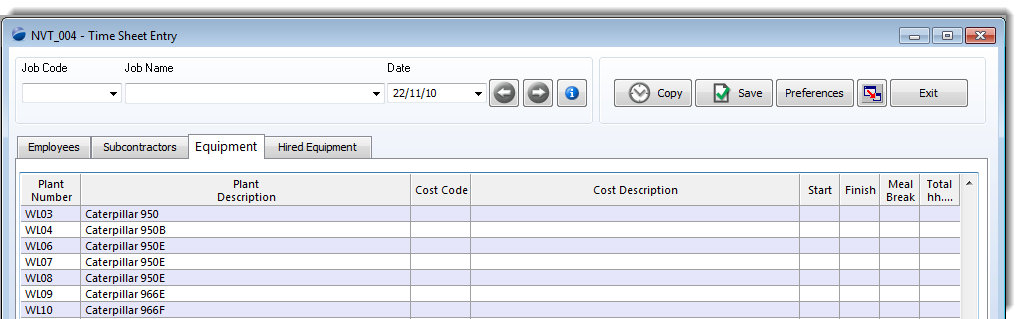
Worked example.

Hired Equipment - effectively the same data entry as the Georgiou equipment. 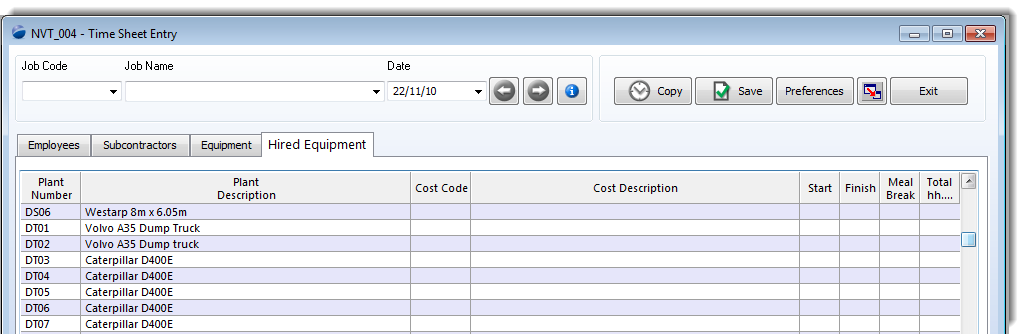
Speeding up Data Entry
To speed up data entry , the time sheet has the ability to copy time sheet data between days. The timesheet data has shown itself to be largely the same from day to day, with a few changes in cost codes, and therefore a "Copy" button is provided to allow for the copy of time sheet data from a previous date to the date being entered. The expectation is that today's data is a lot like yesterday, so copy yesterday's timesheets and make any changes. And, not only can you copy yesterday's data, but you may copy data from any previous time sheet entry.
Please note, that the copy can only be performed for the same job code, different dates.
Clearing superfluos data after copy
When you copy data between days, you will at some occassion copy more shifts than are required for the day. Therefore you must clear the unwanted shifts, before you save your timesheet. The way to clear data that you've copied or entered by mistake is to use the checkbox and process as described in the following paragraph "deleting copied data". All that you need to do is to 'check' the line which you want cleared, and then press the red "X".
Deleting saved copied data
You may on occassion, save the copied data or newly entered data and then realise that it was a mistake. To remove data which you've saved, follow the same process as for clearing copied data (or any data on the time sheet screen), and press the "X" to clear or delete the data.
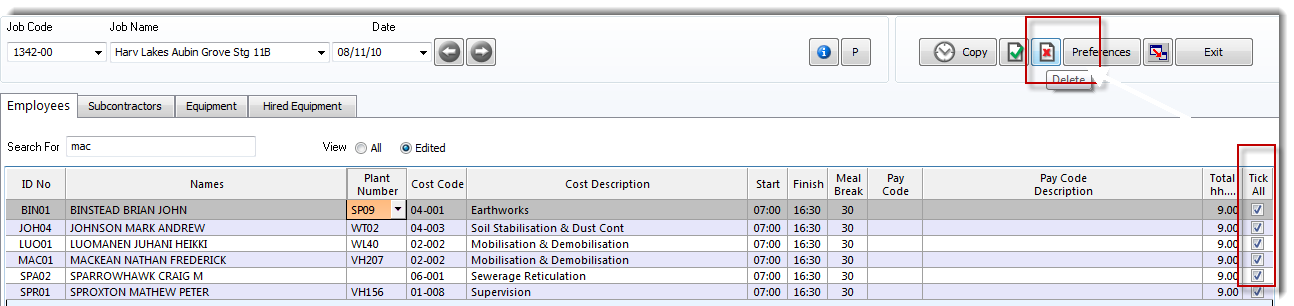
In the case of where you actually want to delete saved data, you will be prompted to confirm that you actually wish to delete these entries (as per below).
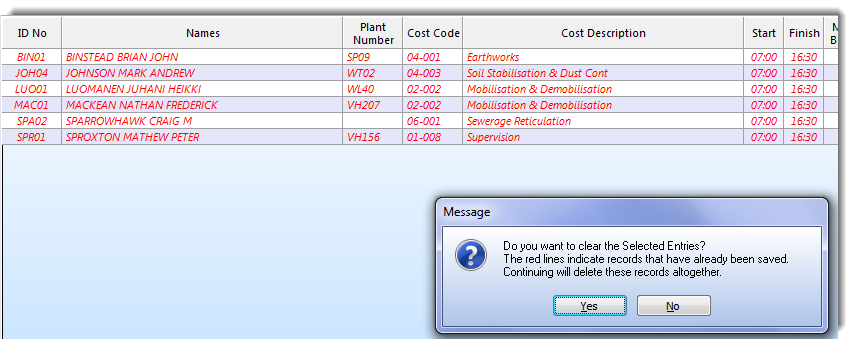
Once you confirm the delete, the screen will redraw and you may then continue with your data input.
Top of Page
See Also
 PowerForce Controls PowerForce Controls
Set User Preferences
Time Sheet (window) re-Design requirements document
Time Sheet (window) version 4
Time Sheet (Employee based Entry - nvt_001)
Export TimeSheet data
Time Sheet (window) Original Design
Time Sheet Testing (06/12/10)
Top of Page

Article updated by PowerForce Software on Monday, December 6, 2010.
Copyright ©2007-2013 Envizion Systems - All Rights Reserved - Terms of Use.
|


