|
Home > Tutorials

Timesheet Application logon - PowerForce™
Introduction
This document outlines the steps to logon into the Timesheet application.
| Getting There:
[ N/A ]
|
Introduction
The timesheet application involves the user loging on to the application. Please note that the password used here is not the password that you have / are using for logging on to the Georgiou network.
To start the timesheet application, click on the timesheet icon 
Top of Page
Logging on
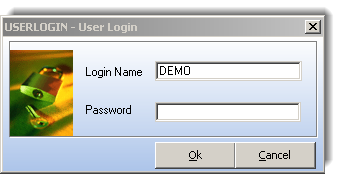
You'll be presented with the following screen, and until the application is live the username is "Demo", and there is no password during the testing phase.
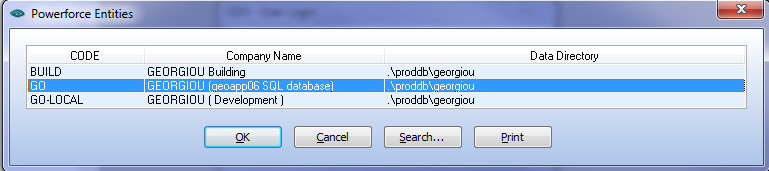
Once you login, you are presented with the option to select the company database to work against. Select GO, to use the geoapp06 SQL database.
The BUILD database is not currently configured (01/11/11).
The GO-LOCAL is the development database.
Top of Page
Navigator View
Once you complete the login, your display will show the following:
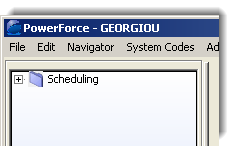
Click on the + to open your view, displaying the available options
Top of Page
Changing the View
The current views are as shown in the image. Select the option appropriate to what task you wish to complete.
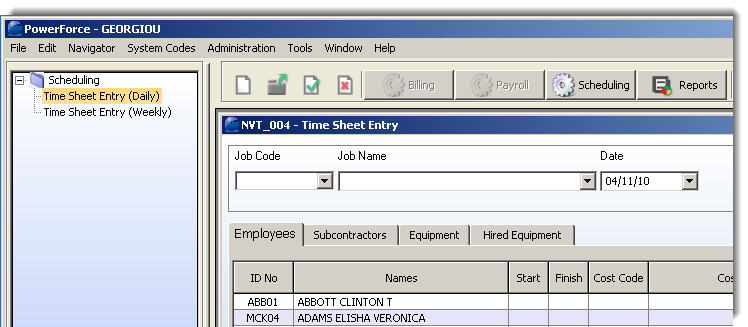
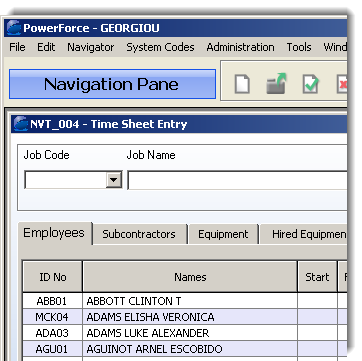
When the display screen is larger than the available area, the navigator will be collapsed out of the way. To get it back, press the rather large "Navigator Pane" button.
Top of Page
See Also
 PowerForce Controls PowerForce Controls
Daily Timesheet Entry
Top of Page

Article updated by PowerForce Software on Friday, November 18, 2011.
Copyright ©2007-2013 Envizion Systems - All Rights Reserved - Terms of Use.
|